Create a reply with fill-in fields
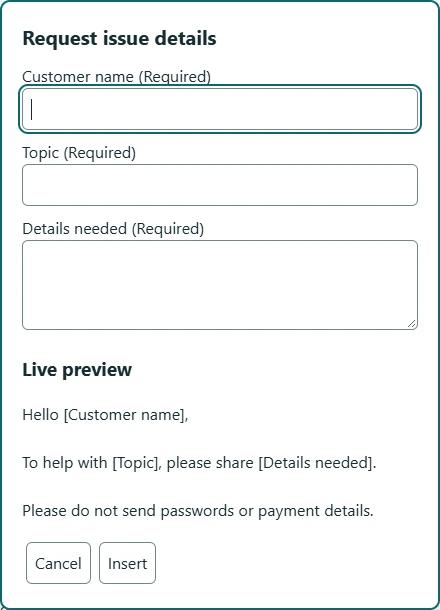
Build a short response that asks for a name and a topic. Use the visual editor to create real fields, then preview the result.

Use fill-in fields for changing details and reusable blocks for the parts that should stay consistent.
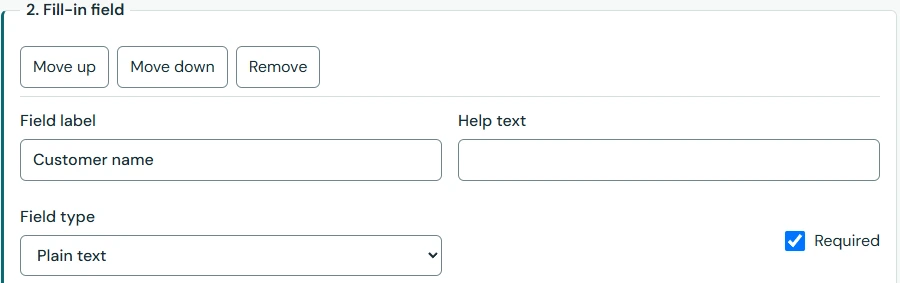
A meeting reply may keep the same structure but need a different name, date, and topic. Add those as fields in the visual editor. Text, multiline text, choices, checkboxes, dates, and numbers are available.
Mark a field required when an empty answer would make the reply unclear. Preview the template and test the wording with short and long values. Per-use answers are transient; authored defaults are saved library content.
Hello [name],
Thanks for your question about [topic].
Here is the information we discussed: [details]
A signature or standard introduction can be its own snippet and be referenced from another template. Stable references connect the block to its source. Update the block, then preview the templates that use it.
When exporting a selected pack, include its reusable-block dependencies. Missing, disabled, restricted, or cyclic references can prevent insertion. Blocks are local library reuse, not a shared cloud team workspace.
Conditions can show an optional section based on a field or saved custom value. For example, a checkbox can include an extra explanation only when needed. Required fields in inactive branches do not need answers.
Date values are calculated when you use the template. A relative date is text in your reply, not a reminder or scheduled message. Use the visual controls; labels such as [name] in this website’s examples are illustrative placeholders, not executable syntax.
Choose Add section, then Fill-in field. Set Field type to Plain text for a name or Multiline / متعدد الأسطر for longer details. Give each a clear Field label. In the preview, try Samira and “the latest project outline”. The result should read as one reply with no leftover labels. If a required answer is blank, complete it before insertion; if brackets appear literally, return to the editor and replace the placeholder with a real field.