One template. The right details.
Build a reply with name and topic fields, preview realistic answers, and reuse a signature block without maintaining duplicate text.

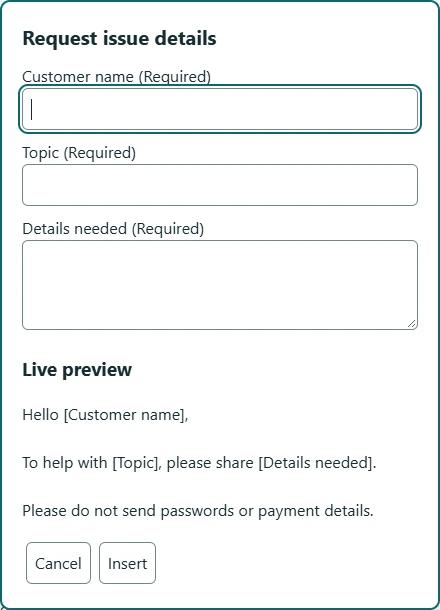
Build a short response that asks for a name and a topic. Use the visual editor to create real fields, then preview the result.
Write the sentence you want to reuse. Identify the two details that change. In this illustration, [name] and [topic] are labels for your planning; copying these brackets into Plain text does not create fields.
Hello [name], thanks for your question about [topic]. I’ll review the details.
The extension’s normal authoring workflow does not require encoded template commands. Use the template builder rather than guessing a {{name}} syntax.
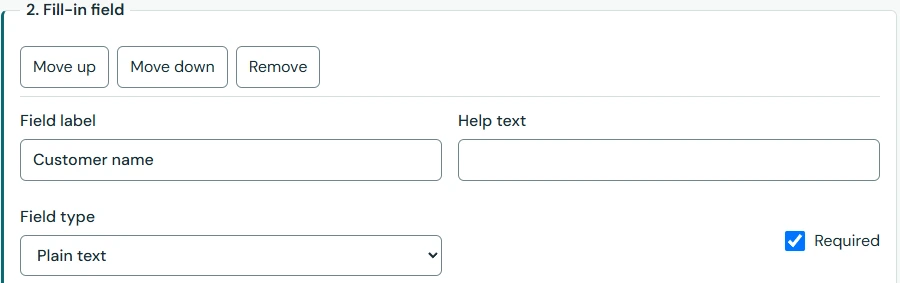
Try a long name, a blank required value, Arabic text, and punctuation. The reply should still read naturally. If the same field is reused, matching stable field definitions share an answer; identical labels alone do not make separate fields identical.
An optional section can be controlled by a checkbox. Keep the controlling field outside the section it controls. Only active branches contribute their required questions.
Review the prepared text before inserting it. If the original destination changes while you fill the form, the extension can retain the output for copying or reselecting a target instead of inserting into the wrong place.
Do not put real customer details into defaults unless you intend to save them. Per-use answers are transient, but authored defaults and custom reusable values are library content and can appear in backups.
A field holds the answer, not the surrounding sentence. Keep the space after “Hello” in the preceding text segment and the comma in the following segment. Preview “Samira” and a longer name. If words touch, repair the text segments instead of adding spaces to every answer. Save again and repeat the practice test.